12. Plots
Protected plots, member permissions, and plot tools. (Cover picture is of CinderyCrow's camel field and shows plot boundaries!)
Getting Started
What Are Plots?
A plot is a protected area of land.
Inside a plot, the owner controls who can build, break blocks, use doors, open containers, interact with entities, and manage other access rules.
This prevents things such as griefing and stealing.
Wilderness
Land outside plots is considered wilderness.
You can claim any plot of land not currently owned by another player.
Where to Get Plots?
You can get plot claims from the following sources:
- /shop (for real money)
- /questshop (for tokens earned from /questboard)
- /ah (from other players selling them)
- winning horse races
- /warp docks (for points earned from winning races and chatgames; click on the shady guy at the end of the dock)
Plot Commands
Most plot features can be reached through the plot panel:
/plot panel
Main Commands
| Command | What it does |
|---|---|
/plot help |
Shows plot help in-game |
/plot panel |
Opens the plot panel |
/plot info |
Shows information about the plot you are standing in |
/plot list |
Lists plots you own or are a member of |
/plot tp <plotId> |
Teleports you to one of your plots or member plots |
/plot visual |
Toggles the boundary visual for the plot you are standing in |
/plot name <plotId> <name> |
Renames one of your plots |
/plot name <plotId> clear |
Clears a plot name |
Member Commands
| Command | What it does |
|---|---|
/plot members |
Shows members of the plot you are standing in |
/plot add <player> |
Adds a player to your current plot |
/plot kick <player> |
Removes a member from your current plot |
/plot leave [plotId] |
Removes you from a plot after confirmation |
When you add a member, the permission editor opens so you can choose what that player can do.
Deleting a Plot
/plot delete [plotId]
Deleting is permanent and removes ModN Realty protection from the plot.
You must be standing on the plot you want to delete.
Leaving a Plot
/plot leave [plotId]
Use leave when you want to remove yourself from a plot. Use delete only when you want to permanently remove the plot.
If you are a member, leaving removes your member access.
If you are the owner, leaving abandons the plot and ends the lease, but it does not refund a claim item.
Confirmations
Leave and delete commands ask you to type an exact confirmation phrase in chat.
Read the message carefully before confirming.
Claiming a Plot
Obtain a plot claim item.
Plot Sizes
Common plot sizes are:
| Size | Area |
|---|---|
| Small | 70 x 70 blocks |
| Medium | 120 x 120 blocks |
| Large | 250 x 250 blocks |
| XLarge | 400 x 400 blocks |
| XXLarge | 600 x 600 blocks |
Preview Colours
The preview helps you check the plot before confirming.
| Preview | Meaning |
|---|---|
| Green | The plot can be placed here |
| Red | The plot overlaps or collides with another plot |
If the preview is red, cancel and try a different location.
Claiming a Plot- JAVA
To start claiming:
- Hold the plot claim
- Right-click a block
- A preview appears. You can also use
/mapto open the map link and check the precise placement of your plot.
The block you click becomes the fixed starting corner for the claim preview.
The plot extends away from where you are facing. Sneaking while starting the claim changes the sideways orientation.
After the preview appears:
- Left-click to begin confirmation
- Wait for the countdown
- Left-click again when prompted to confirm
If the claim is cancelled or fails, your claim item is returned. Scrolling off the item, putting the item in your offhand, and waiting too long will all cancel a claim.
Claiming a Plot- BEDROCK
To start claiming:
- Hold the plot claim
- Click the ground
- A preview appears. You can also use
/mapto open the map link and check the precise placement of your plot.- (It's suggested to open the map before claiming on bedrock)
The block you click becomes the fixed starting corner for the claim preview.
The plot extends away from where you are facing. Sneaking while starting the claim changes the sideways orientation.
After the preview appears:
- Click the air to begin confirmation
- Wait for the coundown
- Click the air again when prompted to confirm
If the claim is cancelled or fails, your claim item is returned. Scrolling off the item, putting the item in your offhand, and waiting too long will all cancel a claim.
Refunding the Plot Claim
If you place a new plot and then decide you want it somewhere else, use /plot delete within 24 hours to remove it and receive a refund of the plot claim item.
You can then place the plot again in a different location.
This will not work on "available" plots or extending a plot lease.
Existing Plots
Using a matching-sized plot claim on an existing expired or "available" plot will start a confirmation to renew, extend, or claim the land.
Follow the messages shown in chat. Left-click confirms after the countdown (Or clicking the air for bedrock).
If an Old Claim Item Does Not Work
Contact a mod or make a ticket using /ticket create (comment) or by going to discord and opening a #support-ticket!
Using the Plot Panel
The plot panel is the main menu for managing your plots.
Open it with:
/plot panel
Plot List
The plot panel shows plots you own and plots where you are a member.
If you have several plots, use the sort button to change the order.
Sort options include:
- Plot ID
- Owned plots first
- Member plots first
- Expired plots first
- Soonest expiry first
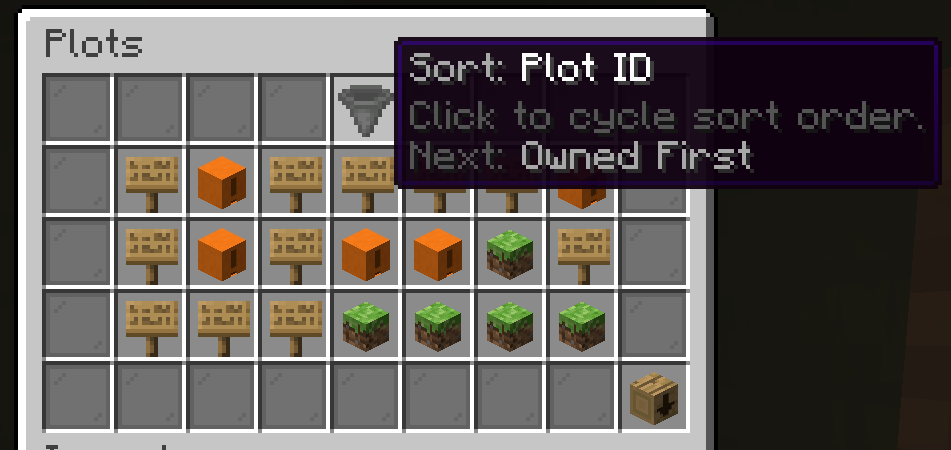
Click a plot to open its detail screen.
Plot Detail Screen
The plot detail screen can include:
- plot information
- members
- public permissions
- boundary visual
- teleport to plot
- owner-only plot settings
- (fire spread, hostile mob spawning, explosions, and hostile mob damage)
- back button
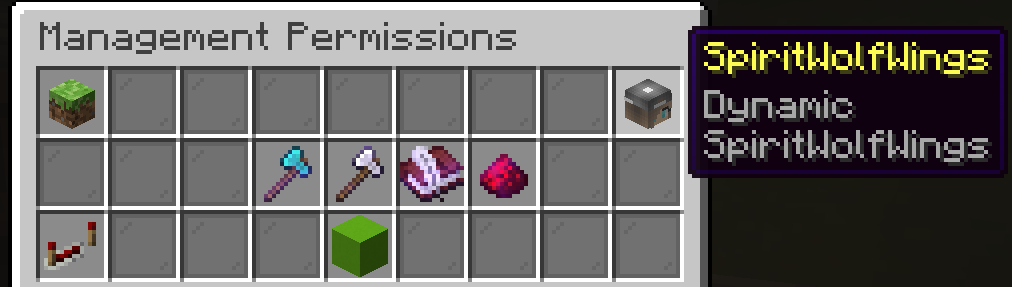
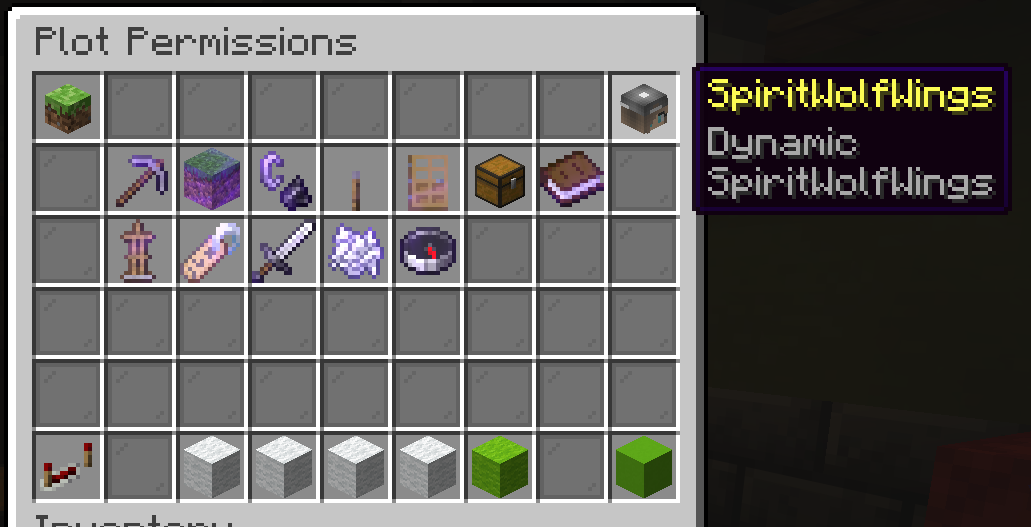
Editing Member's Permissions
- View management perms
- adding members and removing members
- editing member permissions
- editing public permissions
- View general plot perms
- breaking and placing blocks
- using items on a block (ex: shears, flint and steal)
- using switches and doors
- opening containers (ex: barrels, chests, hoppers)
- taking displayed items (ex: item frames, lecterns, shelves)
- using armor stands
- interacting with enemies (ex: shearing sheep, trading with villagers)
- fighting hostile mobs and passive mobs
- setting a /home or /pwarp
Teleporting to a Plot
Use the teleport button in the plot detail screen, or use:
/plot tp <plotId>
You can teleport to plots you own and plots where you are a member.
Boundary Visual
Use the boundary visual button to show the plot outline.
You can also use:
/plot visual
The visual clears after a short time, or you can toggle it off.
Saving Changes
Permission and setting changes save as you click them, so review toggles before clicking.
Plot Members and Permissions
Members are players you add to your plot.
Only add trusted players! They can help build, decorate, use, or manage the plot.
Adding a Member
Stand inside your plot and use:
/plot add <player>
The player must have joined the server before.
After they are added, the plot permission editor opens so you can choose what they can do. Every click autosaves!
Removing a Member
Stand inside your plot and use:
/plot kick <player>
You can also kick members from the plot panel by clicking on the member and clicking the door icon in the bottom right of the ui.
Viewing Members
Stand inside a plot and use one of the following.
/plot members
/plot info
(Or open the plot panel and use the Members icon.)
Permission Presets
The member permission editor includes the following presets:
| Preset | Good for |
|---|---|
| Visitor | Safe guests who can use doors and fight hostile mobs |
| Builder | Players who can build, break, and interact, but not open containers or harm animals |
| Trusted | Trusted players who can also interact with entities and armor stands |
| Full Access | Highly trusted players, similar to co-owner-style access |
| Custom | A custom mix of permissions (Selecting extra options will auto-select this pre-set) |
Plot Permissions
You can toggle these perms separately for each player (member plot permissions), or as a whole for the plot (public permissions).
| Permission | Lets the member... |
|---|---|
| Break Blocks | break blocks |
| Place Blocks | place blocks |
| Use Items | use items on blocks |
| Use Switches | use buttons and levers |
| Use Doors | use doors, trapdoors, and gates |
| Open Containers | open containers such as chests and barrels |
| Use Armor Stands | interact with armor stands |
| Interact With Entities | interact with non-horse entities |
| Damage Hostile Entities | fight hostile mobs |
| Damage Passive Entities | harm passive mobs |
| Set Access Point | set homes or warps inside the plot |
Public Plot Permissions
Public permissions are for the players who are not members of your plot.
You can toggle pvp for the plot under plot permissions. Doing so will make it so only the owner of the plot can damage other players.
Management Permissions
Management permissions let a member help manage the plot itself.
| Permission | Lets the member... |
|---|---|
| Add Members | add new members to the plot |
| Remove Members | remove members from the plot |
| Edit Member Permissions | change member plot permissions |
| Edit Public Permissions | change non-member permissions |
Only give management permissions to players you fully trust!!
Saving Changes
Permission changes save as soon as you click them.
Plot Lease, Expiry and Renewal
Some plots have an expiry date. Others may be permanent.
Use plot information to check how long a plot is owned for.
Checking a Plot
Stand inside a plot and use:
/plot info
Look for the plot's expiry or owned-until date.
You can also check your plots through:
/plot panel
Expiry Reminders
You will receive reminders when one of your plots is getting close to expiry.
You can also see if a plot is close via looking at /plot panel, as it will turn orange, and then red.
Renewing a Plot
Use the correct matching claim item on your plot to renew or extend it when available. If the plot claim isn't working, it's either the wrong size or you do not have perms to extend the lease.
Follow the messages shown in chat.
Existing plot actions usually use a short confirmation flow:
- left-click to begin confirmation (or click the air on bedrock)
- wait for the countdown
- left-click again when prompted (or click the air on bedrock)
- right-click to cancel (or click the ground on bedrock)
Expired Plots
If a plot expires, you will not be able to interact inside the plot until it is renewed or claimed again.
Any player can claim expired plots, so make sure to claim yours before it gets stolen!
Permanent Plots
Permanent plots do not expire and can very rarely be found at /warp docks from the shady guy at the end.
Plot Protection Perks!
Plots protect property.
They are designed to stop other players from changing or using protected land unless they have permission.
What Plots Can Protect
Depending on permissions, plot protection can affect:
- breaking/placing blocks
- trampling farmland
- opening containers
- using doors, trapdoors, gates, buttons, and levers
- using items on blocks
- using buckets
- interacting with armor stands, item frames, and paintings
- interacting with entities
- damaging hostile and passive mobs
- damaging players through PvP settings
- vehicle access such as boats and minecarts
- fire/block burning and explosions
- natural hostile mob spawning
- tree and plant growth crossing plot boundaries
Plots Are Not Full Safe Zones
You can still take normal Minecraft damage inside a plot and die.
Horses
Horse access still depends on ModN Equine horse permissions, not on /plot panel permissions.
If You Cannot Perform an Action...
If you cannot do something inside a plot, you probably do not have the required permission.
Ask the plot owner to check your member permissions, or contact a mod via a #support-ticket on the discord, or by typing /ticket create (comment) while online.