
Using the Plot Panel
The plot panel is the main menu for managing your plots.
Open it with:
/plot panel
Plot List
The plot panel shows plots you own and plots where you are a member.
If you have several plots, use the sort button to change the order.
Sort options include:
- Plot ID
- Owned plots first
- Member plots first
- Expired plots first
- Soonest expiry first
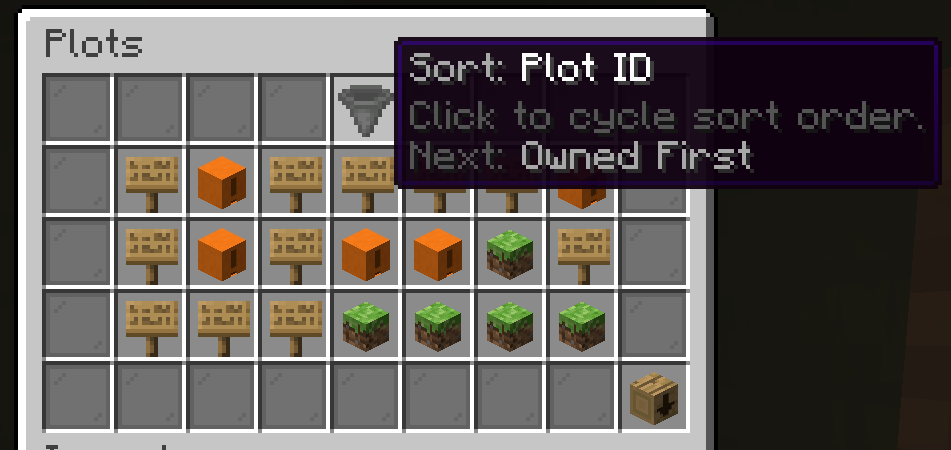
Click a plot to open its detail screen.
Plot Detail Screen
The plot detail screen can include:
- plot information
- members
- public permissions
- boundary visual
- teleport to plot
- owner-only plot settings
- (fire spread, hostile mob spawning, explosions, and hostile mob damage)
- back button
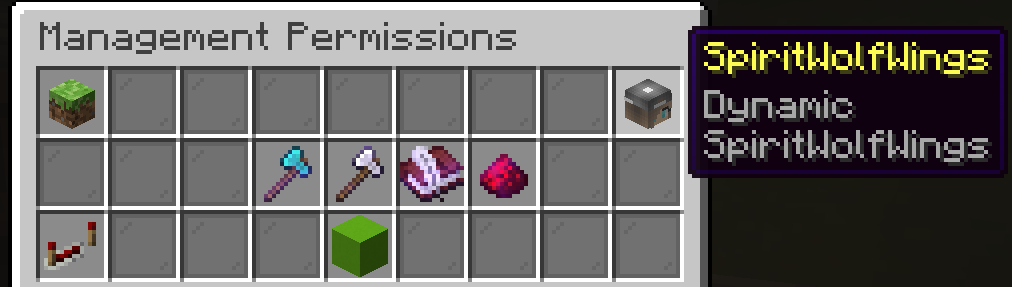
Editing Member's Permissions
- View management perms
- adding members and removing members
- editing member permissions
- editing public permissions
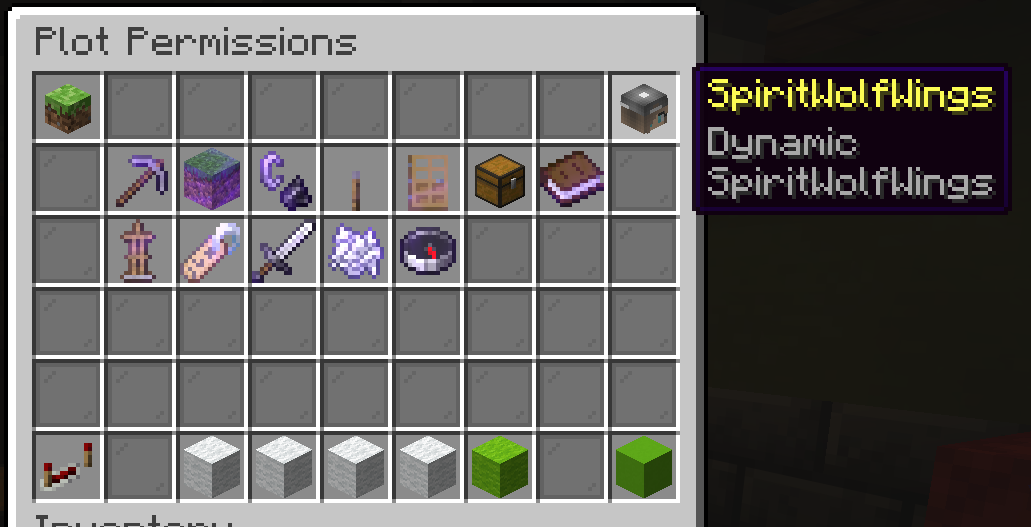
- View general plot perms
- breaking and placing blocks
- using items on a block (ex: shears, flint and steal)
- using switches and doors
- opening containers (ex: barrels, chests, hoppers)
- taking displayed items (ex: item frames, lecterns, shelves)
- using armor stands
- interacting with enemies (ex: shearing sheep, trading with villagers)
- fighting hostile mobs and passive mobs
- setting a /home or /pwarp
Teleporting to a Plot
Use the teleport button in the plot detail screen, or use:
/plot tp <plotId>
You can teleport to plots you own and plots where you are a member.
Boundary Visual
Use the boundary visual button to show the plot outline.
You can also use:
/plot visual
The visual clears after a short time, or you can toggle it off.
Saving Changes
Permission and setting changes save as you click them, so review toggles before clicking.
No comments to display
No comments to display