
Using the Plot Panel
The plot panel is the main menu for managing your plots.
Open it with:
/plot panel
or:
/p panel
Plot List
The plot panel shows plots you own and plots where you are a member.
If you have several plots, use the sort button to change the order.
Sort options include:
- Plot ID
- Owned plots first
- Member plots first
- Expired plots first
- Soonest expiry first
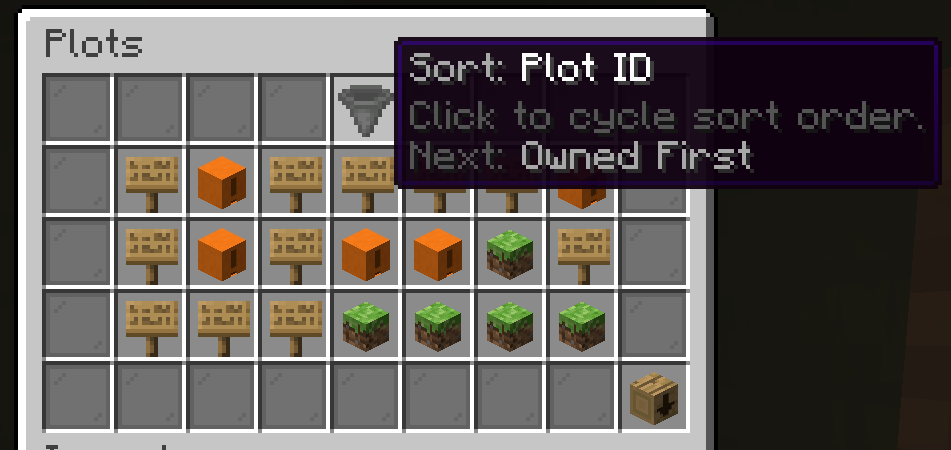
Click a plot to open its detail screen.
Plot Detail Screen
The plot detail screen can include:
- plot information
- members
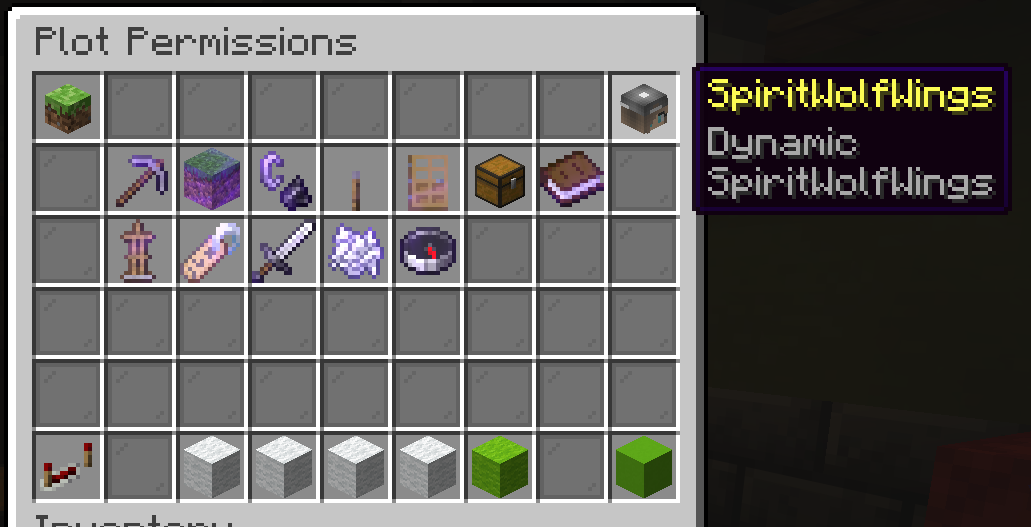
- public permissions
- boundary visual
- teleport to plot
- owner-only plot settings
- (fire spread, hostile mob spawning, explosions, and hostile mob damage)
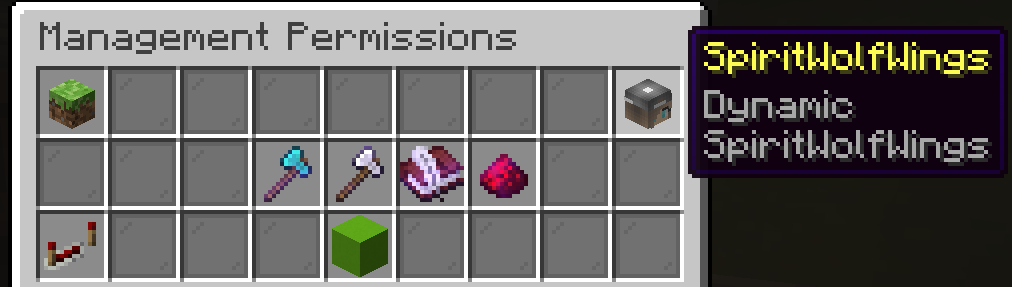
Editing Member's Permissions
Teleporting to a Plot
Use the teleport button in the plot detail screen, or use:
/plot tp <plotId>
You can teleport to plots you own and plots where you are a member.
Boundary Visual
Use the boundary visual button to show the plot outline.
You can also use:
/plot visual
The visual clears after a short time, or you can toggle it off.
Owner Settings
Owners may see extra settings in the plot detail screen, such as:
These are plot-level settings. Use them carefully.
Saving Changes
Permission and setting changes save as you click them, so review toggles before clicking.